
How to Turn a Novel into a Screenplay You Can Edit in Final Draft
Turn a PDF or Word novel into an editable screenplay, export FDX for Final Draft, and check scene headings, dialogue, and completeness before revising.
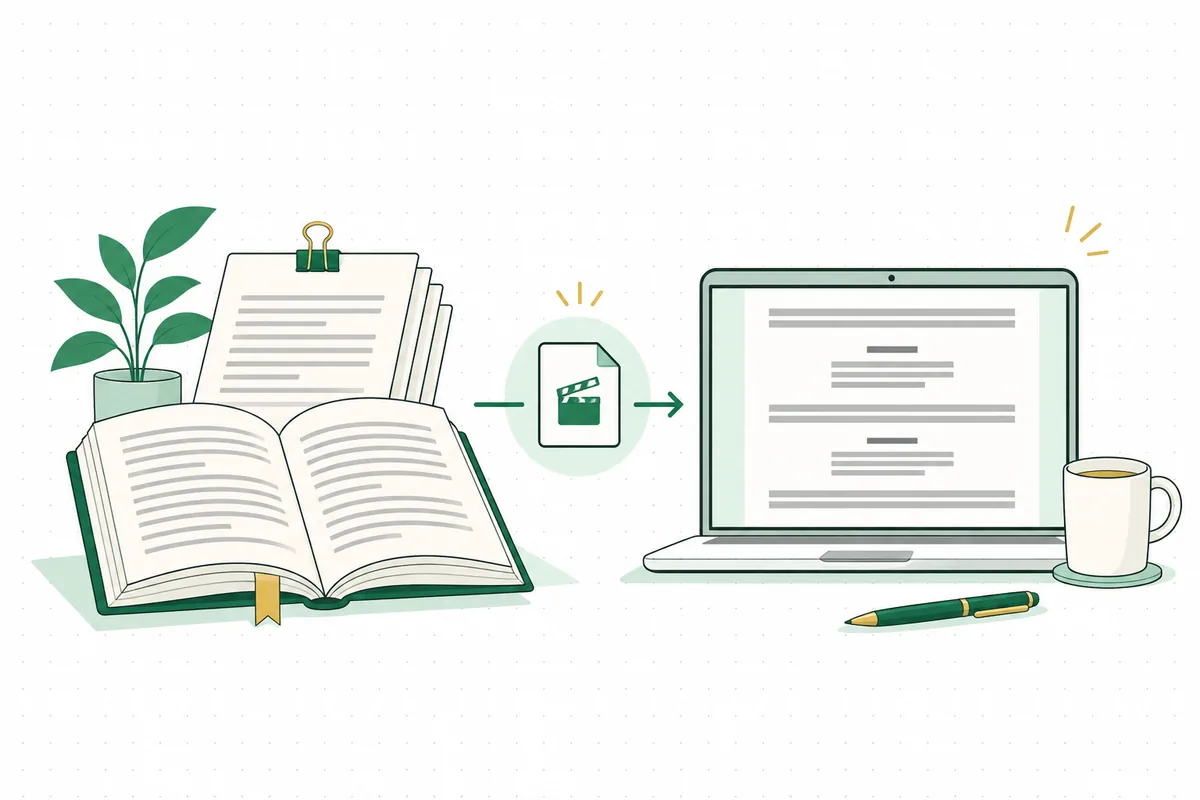
Final Draft can import text from a novel, but it does not automatically adapt that novel into a screenplay. Its own support documentation distinguishes importing a book from rewriting it into scenes, action and dialogue. A manuscript that opens successfully can still contain pages of narration that need adaptation.
If you want to turn your Word or PDF novel into a draft you can develop in Final Draft, work in two stages: create and review the adaptation, then export an FDX file for further screenwriting. This gives you two separate checks: whether the story works on screen and whether the file behaves correctly in your editor.
Free opening preview. Sign in to export; full adaptation requires a paid pack.
Start with the file you actually have
The right workflow depends on what is inside the document.
| Your starting file | The work it needs | Sensible next step |
|---|---|---|
| A novel or prose chapter | Selecting scenes and turning narration into dramatic action | Adapt the prose, then export an editable screenplay |
| An existing screenplay in Word or PDF | Importing and checking screenplay elements | Use Final Draft’s import workflow |
| An image-only scan of a manuscript | Recovering readable text before adaptation | Create and proofread a text-based copy first |
If your document already contains scene headings, action, character cues and dialogue, start with Final Draft’s import instructions. Its guidance covers PDF import in Final Draft 12 and 13, with text and RTF routes for other circumstances. You do not need a new AI adaptation simply to move an existing screenplay between applications.
If your document is prose, decide what the audience should see and hear. Changing margins or file extensions cannot make those adaptation choices.
Prepare a clean copy of the novel
Keep the original manuscript unchanged and prepare a separate adaptation copy. Choose material you own or have permission to adapt and process.
NovelToScreenplay accepts text-based PDF, DOCX and TXT manuscripts up to 100 MB. Before uploading:
-
Use readable text. Try selecting and copying a paragraph from a PDF. If it is only a page image, recover the text and proofread it first.
-
Keep chapter headings and scene breaks clear. They help you compare the source with the adaptation later.
-
Remove material outside the story. A submission cover letter or export instructions should not become part of the narrative.
-
Resolve tracked edits in your working copy. Make it clear which wording belongs to the version you want adapted.
-
Check names and unusual characters. Search for a few names near the beginning, middle and end to catch inconsistent spellings or extraction errors.
Prepare a short reference note alongside the manuscript. Record the protagonist’s immediate goal, essential relationships, the ending and any fact the audience must not learn too early. Keep this note for your own review; it does not need to be inserted into the novel.
For a mystery, note when each clue becomes known. Use that timeline to catch dialogue that reveals information too early.
Review the adaptation before committing to the full draft
Upload your manuscript and preview the opening in NovelToScreenplay. The free opening lets you examine how your material becomes screenplay scenes. Sign in to export that preview; generation beyond the opening requires a paid pack.
NovelToScreenplay offers Feature, TV Pilot and Short targets. Decide which form you are developing before assessing the draft. A feature should build toward a complete central arc; a pilot may deliberately leave continuing conflicts open. Neither choice removes the need to review what has been included.
Do not judge the preview only by how closely its layout resembles a screenplay. Read the source beside it and ask:
-
What does the main character want in this scene?
-
What visible event or exchange changes the situation?
-
Has the draft revealed a fact that should remain hidden?
-
Does the dialogue sound like something the character would say?
-
Is a necessary action missing between the start and end of the scene?
Here is an original illustration. In the prose, bookshop owner Tess suspects that courier Malik's delivery receipt is wrong: it records a delivery three hours before the shop opened. She decides to ask about the time before accusing him.
INT. BOOKSHOP - DAY

TESS turns a delivery receipt toward MALIK.
Her finger rests on the time: 8:15 A.M.

TESS
Eight fifteen? We open at eleven.

Malik pulls his hand back from the receipt.
The adaptation gives the suspicion a visible object and a spoken question. In Final Draft, the heading, action, character cue and dialogue must also have the correct element types. Accurate formatting cannot decide whether the question belongs in the story.
The current one-time packs start at $29.90 for one complete adaptation and 20 AI chapter revisions. Check your allowance before requesting changes. Use a focused revision for a story problem, then compare it with the source. Correct a small typo manually.

Export FDX and inspect the handoff
Once the draft is ready for development in Final Draft, choose the FDX export. NovelToScreenplay lets you export an individual chapter or all generated chapters together. For a complete script, finish the planned chapters before combining them.
Keep the downloaded file as an untouched handoff copy. Open a duplicate in your intended Final Draft application and save your working version with a clear date or version number. This makes it easier to distinguish an export issue from a change you made afterward.
Check more than the first page. Inspect the opening, a scene in the middle, a chapter boundary and the ending.
| Check | What to inspect | What to do if it is wrong |
|---|---|---|
| Completeness | Expected scenes and final scene are present | Compare with the generated chapters before editing |
| Scene headings | Location and time appear as Scene Heading elements | Correct the element assignment |
| Character cues | Names sit above the intended dialogue | Check paragraph boundaries and element types |
| Action and dialogue | Description has not become spoken text | Separate paragraphs and apply the correct elements |
| Characters and punctuation | Names, apostrophes and special characters survived | Compare against the source and correct errors |
| Scene order | Cause and effect still connect across chapter boundaries | Restore the intended sequence or revise transitions |
FDX compatibility should still be checked. Final Draft’s guidance on files from other applications warns that third-party FDX files may not behave exactly as expected. Treat FDX as the interchange format and verify the imported document.
For an occasional misclassified paragraph, Final Draft’s reformatting guidance recommends placing the cursor in the paragraph and choosing the correct element. Its Reformat tool can help with a larger cleanup. If several elements have been joined into one paragraph, separate them before assigning their types.
After the technical check, read the script as a continuous story. A clean import does not reveal whether a removed scene has broken a later payoff, or whether a character now changes their mind without a reason.
Choose the other exports for the right purpose
FDX is the practical first choice for this Final Draft workflow. The other exports serve different editing needs.
| Format | Useful next step |
|---|---|
| FDX | Continue developing the screenplay in a compatible screenwriting application |
| DOCX | Share an editable document with someone working in Word or another word processor |
| Fountain | Keep a readable plain-text screenplay for a Fountain-compatible workflow |
Fountain is a plain-text screenplay markup format. Its portability is useful, but the receiving application still determines how it can be opened and edited. Keep the format your collaborator requested alongside your own working copy.
Frequently asked questions
Can I rename a Word document to FDX
No. Renaming a file does not create FDX document structure or turn prose into scenes. Use an actual FDX export after adaptation. If the Word document is already a screenplay, follow the appropriate import route in Final Draft.
Can Final Draft open a Fountain file directly
Final Draft’s support page says it cannot directly open or import a .fountain file. It describes FDX and plain-text import routes instead. For this workflow, choose NovelToScreenplay’s FDX export first and inspect it in your editor.
Can I use the file in Final Draft Go or Final Draft Writer
Check the application you use. Final Draft documents FDX as the supported file type for Go and Mobile. Its Writer documentation also says documents must be FDX to open and edit there. These requirements do not guarantee that every third-party export will render identically, so inspect a sample first.
Can I adapt the whole novel for free
The free offer is an opening preview, with sign-in required to export it. A one-time paid pack unlocks the complete adaptation and an allowance of AI chapter revisions. Use the opening to assess the approach before buying.
Will my novel automatically become a 120 page script
There is no fixed novel-word-count to screenplay-page-count conversion. A draft’s length depends on scene selection, dialogue, action and pacing. Decide what the story needs, revise its structure, then assess the page count in the screenplay application. Do not shorten it by shrinking the text.
Preview your novel’s opening as a screenplay, check the adaptation decisions, and continue in Final Draft when the draft is ready for its next revision.
Start with a PDF, DOCX, or TXT manuscript you own or have permission to adapt.